AI Video Expander

AI Video Expander for Reframing Without Cropping

Fill the space around your original video to fit a new aspect ratio. Expand source clips up to 10 seconds and export up to 720p vertical and 1080p landscape or square.

Target aspect ratio
Resolution

Output length

Frame a bicycle trick for a vertical cut

What Is AI Video Expander?

AI Video Expander is a video editing tool that uses AI to make an existing clip fit a different frame.

It uses video outpainting, a way of creating new picture area beyond the edges of a clip. The source remains the basis of the composition. You can choose a frame shape for where the clip will be shown and give the added area its own purpose, from continuing a background to leaving room for graphics.

What AI Video Expander Lets You Control

Set the shape, guide the new edges and choose a resolution that fits the finished video.

Choose the Shape of Your Video

Give the same footage a shape that fits where it will play. Choose 9:16 or 3:4 for a vertical layout, 1:1 for a square frame, or 4:3, 16:9, or 21:9 for a horizontal layout. The tool generates scenery in the uncovered area of the new frame.

Expand to a New Ratio

Keep the Whole Source Frame

The tool fits the full source frame inside the new canvas before extending it. If a landscape shot includes two people standing far apart, the full image stays in the layout when you make a tall version. This can make the original footage occupy a smaller share of the new frame.

Reframe the Whole Clip

Describe What Belongs at the Edges

Use the prompt to describe what should appear outside the clip. Name a surface, the direction of the light, or an area to leave visually quiet. When you plan to add a headline later, ask for a plain backdrop in the part of the frame where the headline will sit.

Guide the New Background

Set the Output Resolution

Choose the resolution after you pick a ratio. The 360p setting can serve as a draft, while 540p and 720p are available for any supported ratio. Choose 1080p for a supported landscape or square frame when the placement calls for a higher-resolution file.

Choose an Output Resolution

How to Use AI Video Expander

Start with a source clip and export a new version for the frame you need. The AI Video Expander guide covers the controls and common upload issues.

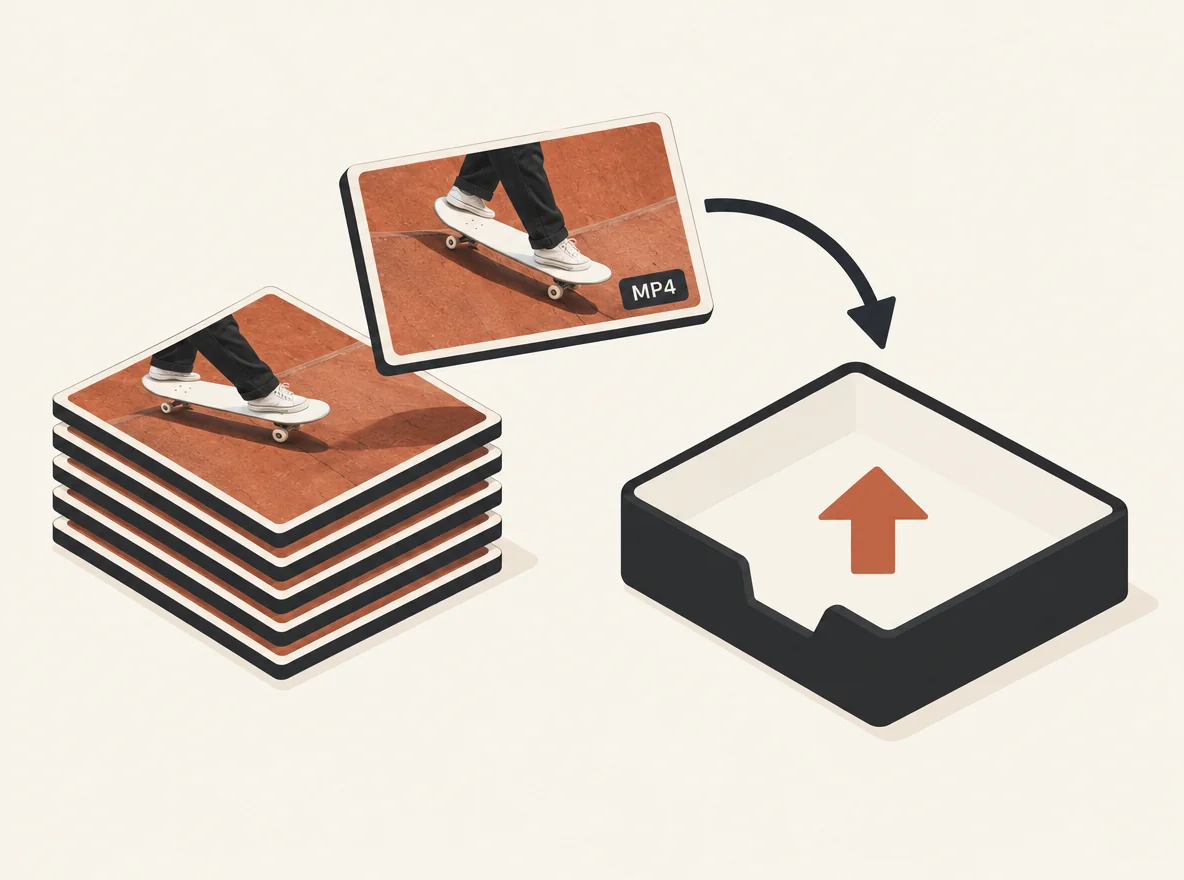
  1. Step 1: Upload a Source Video

    Add the short clip you want to reframe. To use one shot from a longer edit, export that shot on its own before uploading.

    Source video of a white skateboard beside a terracotta ramp
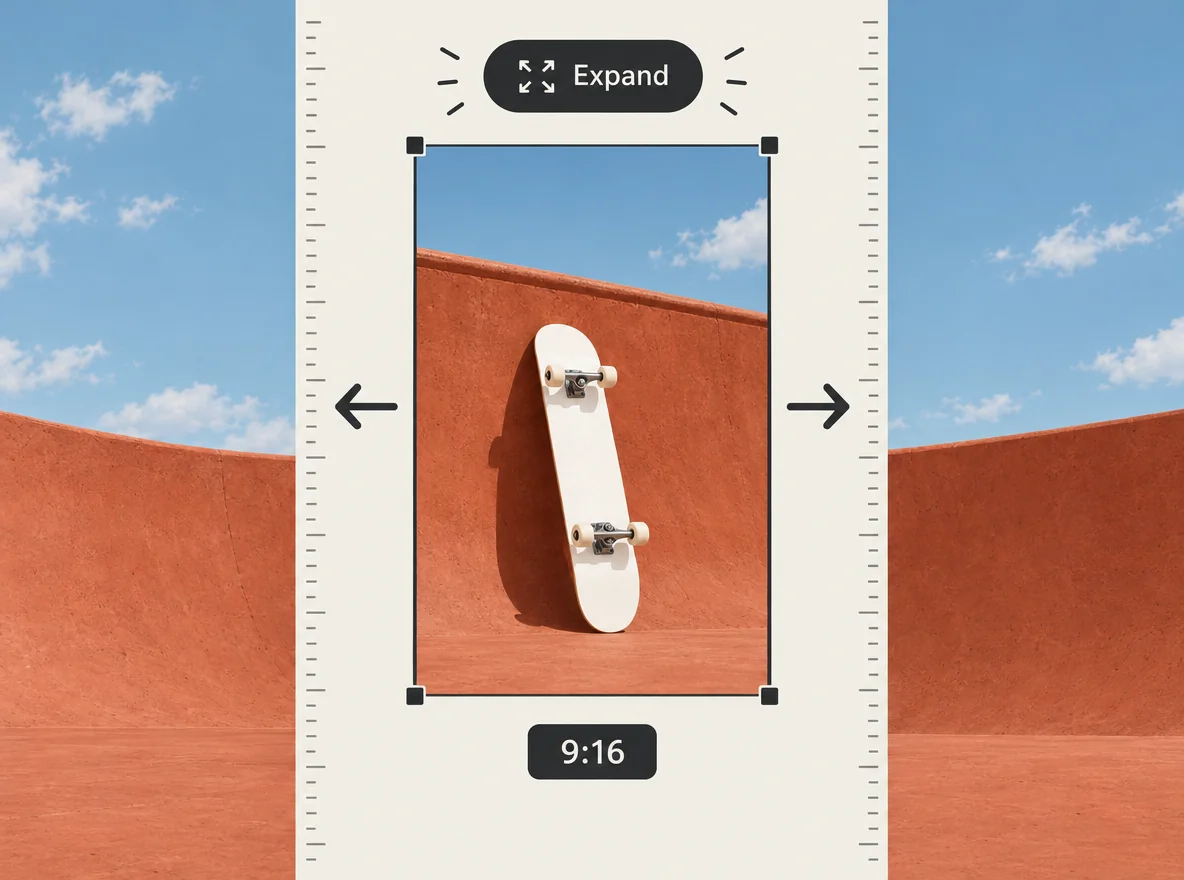
  2. Step 2: Set the Frame and Expand

    Set the target ratio, resolution and output length. Describe what should fill the new space, then expand and preview the clip.

    Target aspect-ratio frames over the skateboard footage
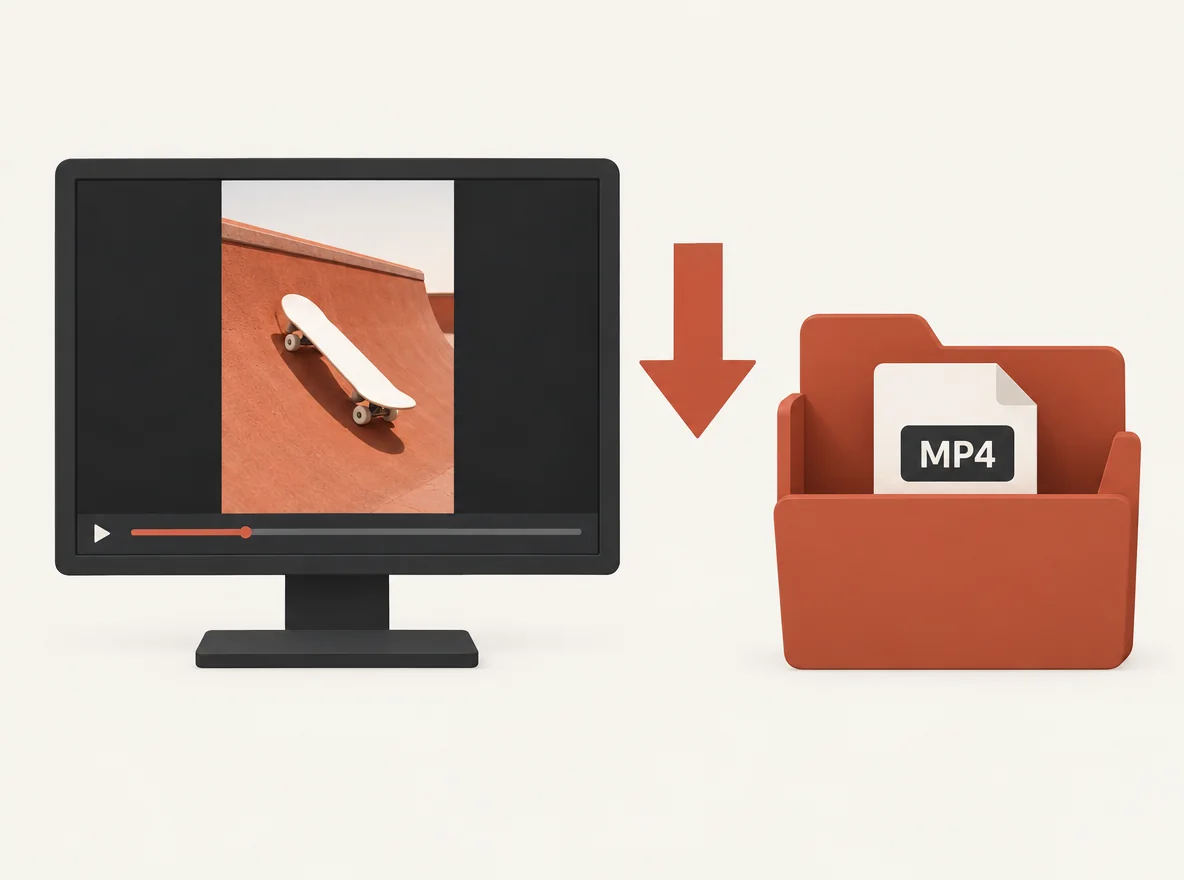
  3. Step 3: Download and Save the Video

    Download the finished MP4 and save it alongside the source so you can use each version for its own placement.

    Expanded video preview in the MP4 download step

Where to Use AI Video Expander

Rework existing footage for a vertical social post, a product ad or a landscape edit.

Turn a Wide Shot into a Vertical Post

A creator with both speakers framed in a landscape interview can fit that shot into a vertical canvas. Expanding the area above and below the source gives the finished Reel or Short room for captions away from the two faces.

Make Room for a Product Headline

When a close product shot fills a square frame, expand it to a horizontal layout with a plain backdrop continuing beside the item. The added space gives you a place for a headline or call to action in your editor without putting text across the product.

Give Portrait Footage a Landscape Frame

A portrait clip with a main subject in the center can be hard to place between wide shots in a video. Expand the scene on either side so the footage has a background that fills more of a landscape layout.

AI Video Expander Pricing

Buy credits in a one-time purchase. Your credits never expire.

200 Credits
$9.90
  • 200 credits
  • One-time payment
  • Credits never expire
Most Popular
650 Credits
$29.90
  • 650 credits
  • One-time payment
  • Credits never expire
1,200 Credits
$49.90
  • 1,200 credits
  • One-time payment
  • Credits never expire

AI Video Expander FAQ

Learn how frame expansion handles existing borders, longer clips and output quality.

Does expanding a video make it longer?

Frame expansion adds space around the picture. If you need the action to continue after the last frame, look for a tool that generates a video continuation.

What happens to black bars in my original clip?

Black bars already baked into the source are inside its saved frame. For an expansion that starts at the edge of the actual picture, prepare a source file with the bars removed before uploading.

Can I expand a clip longer than 10 seconds?

Work with segments of 10 seconds or less. Cut a longer shot into sections before uploading, then reassemble the expanded sections in your editor. Use matching ratios and settings for clips you plan to join.

Which aspect ratios support 1080p?

Square and landscape outputs support 1080p. For 9:16 and 3:4 vertical outputs, the highest setting is 720p. Select the ratio first so the quality choices match where you plan to use the clip.

Can AI recover what was outside the original shot?

The added area is newly generated. It can suggest a plausible continuation of the scene, but use the original footage if you need an accurate record of what was actually there.

Reframe Your Clip with AI Video Expander

Bring a clip that needs more room and choose the format you want to fill.

Expand your video